border
Elements and in-line texts have borders, but they don’t appear by default. We can change this by assigning a value to the border. For instance:
when play begins:
	css-set-fast ".BufferLine; border; solid";
Will draw a heavy black line around every .BufferLine class as it scrolls down the page.

We could just as easily style parts of a text with inline substitution. Here, we add. background-color and border properties to inline text. Note that we can specify characteristics fo the line, too. In this case, we’ll use a dashed orange line with a lightcyan background-color.
to say cyan:
	set-any-class "cyan";

when play begins:
	css-set-fast ".Style_cyan; border; dashed orange";
	css-set-fast ".Style_cyan; background-color; lightcyan";
If we apply the [cyan] substitution to a text, it should look like this:
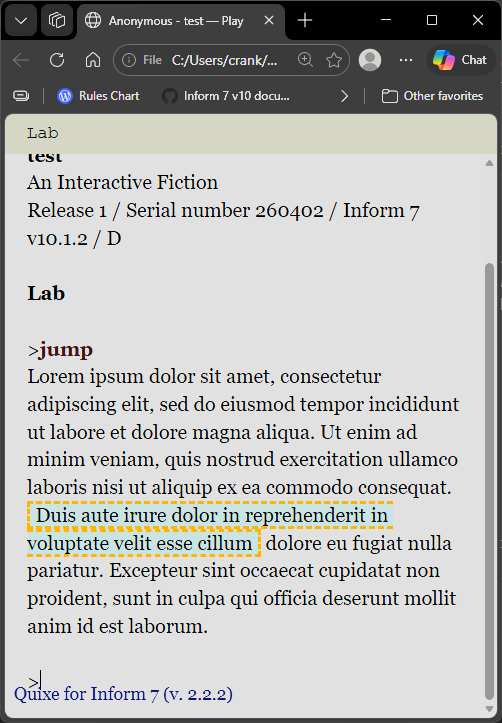
As the example demonstates,
border-right and border-left properties (here set together as border) do not apply to word wrapping. The border is at the literal beginning and ending of the substituted text, so there is no orange line to the right of “reprehenderit in.” An alternative option is explored below.
border-radius
We can do a lot with borders. Consider the border-radius property, which can turn default sharp corners into curves. We can tweak each corner individually, or apply the same value to every corner at once. The property accepts both absolute values (like 20px) or relative ones (20%). If we make changes to the border of the .BufferWindow, the #gameport underneath is revealed.
when play begins:
	css-set-fast ".play; background-color; black";
	css-set-fast "#gameport; background-color; orange";
	css-set-fast ".BufferWindow; border-radius; 25%";
	css-set-fast ".BufferWindow; border; solid";
produces this:
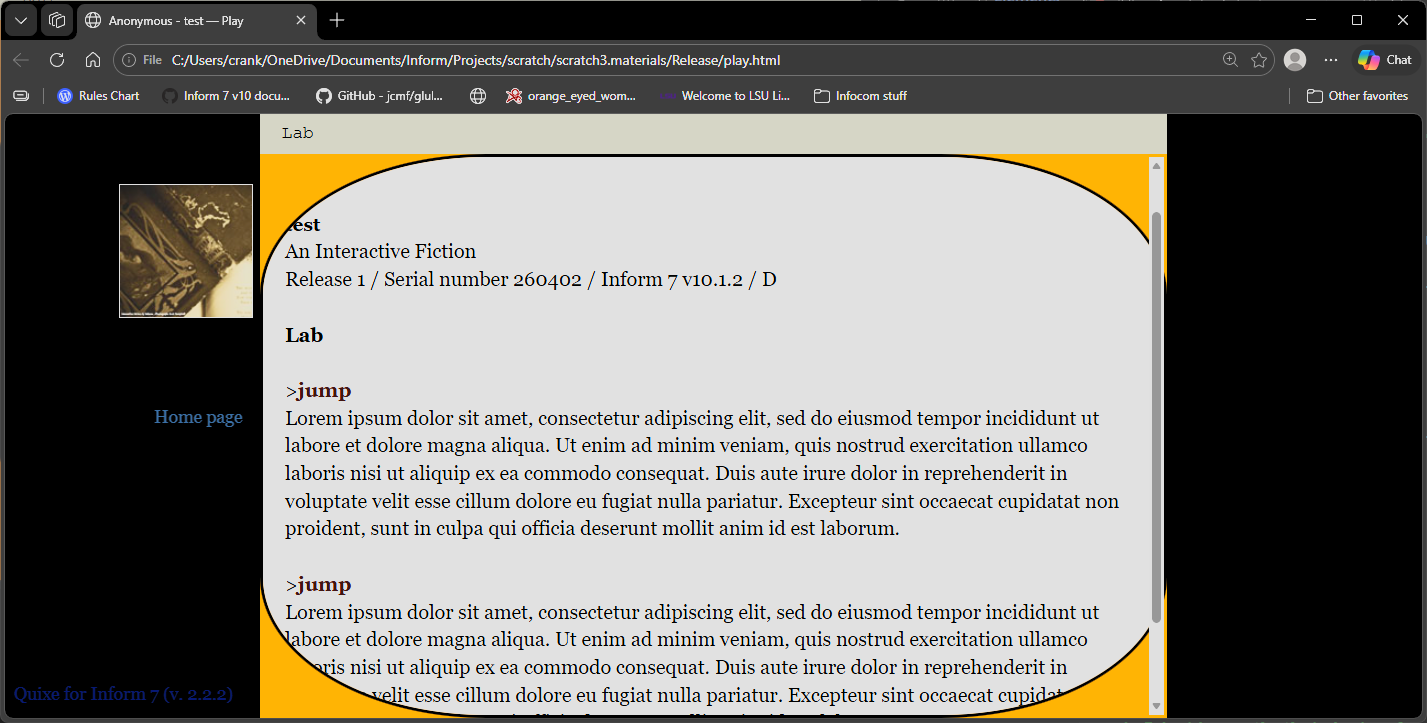
The default behavior is to simply cut off, or clip, content that exists beyond the border. This behavior can be seen at the bottom of the screenshot. So far as this author knows, there is no elegant way to wrap text along the edges of the custom border of a background shape without editing the HTML. Our only recourse is to define the border-radius and then assign a buffer property that is greater than our border radius. In practice, this can sacrifice a good deal of onscreen real estate.
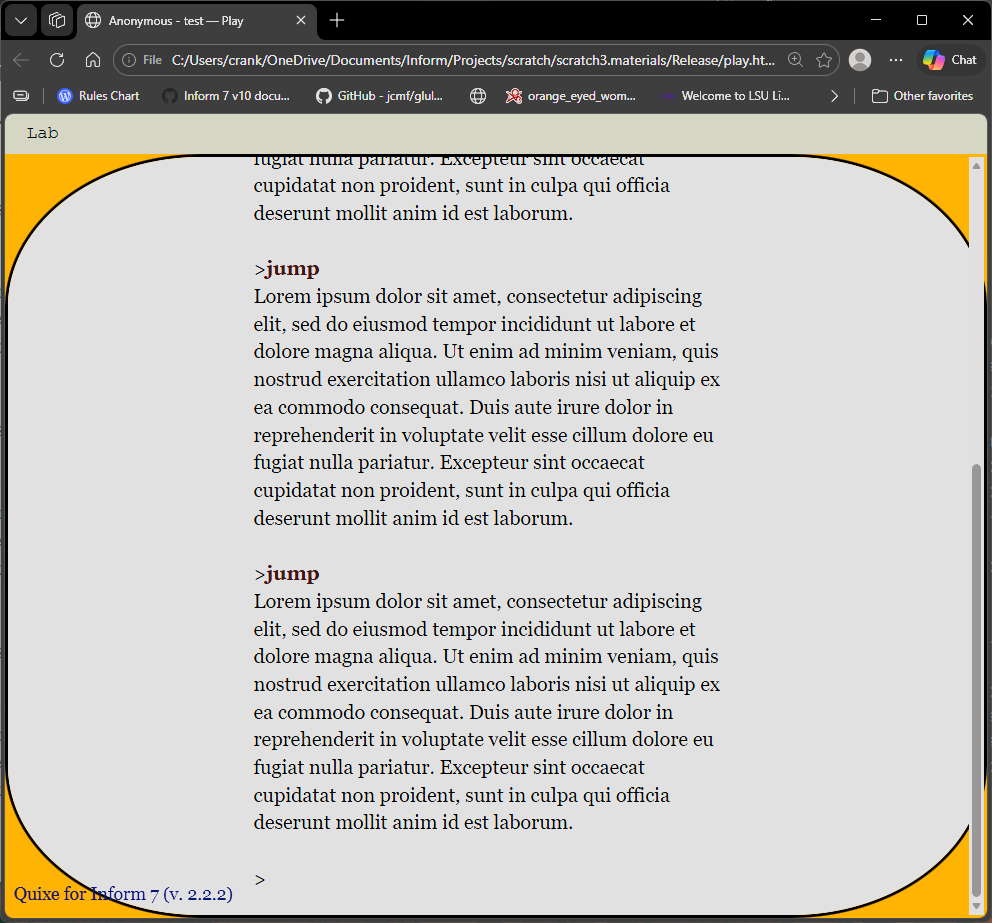
This could be desirable, of course. It is always up to the author. This example:
when play begins:
	css-set-fast ".play; background-color; black";
	css-set-fast "#gameport; background-color; orange";
	css-set-fast ".BufferWindow; border-radius; 20%";
	css-set-fast ".BufferWindow; padding-left; 25%";
	css-set-fast ".BufferWindow; padding-right; 25%";
	css-set-fast ".BufferWindow; border; solid";
yields this:
We could just as easily apply the border-radius property inline, though these will have problems if we don’t take care. Simply adding this code will yield an unappealing result:
to say text:
	set-any-class "text";

when play begins:
	css-set-fast ".Style_text; border; dashed orange";
	css-set-fast ".Style_text; background-color; lightcyan";
	css-set-fast ".Style_text; border-radius; 35px";
	css-set-fast ".Style_text; padding; 38px";
	css-set-fast ".Style_text; padding-left; 5px";
	css-set-fast ".Style_text; padding-right; 5px";
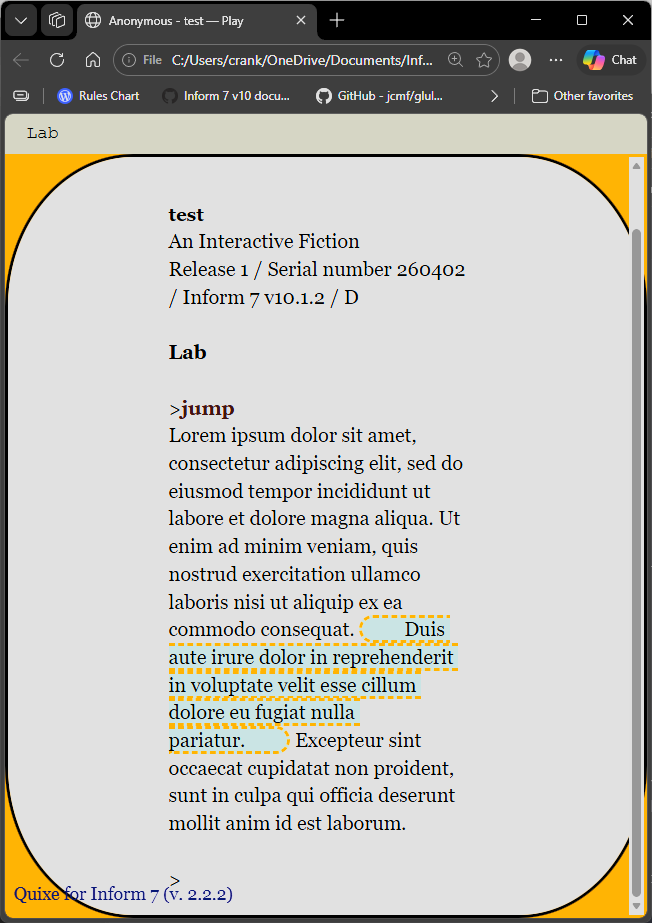
Chances are, we were hoping for a box with a single line around it. In order to accomplish this, we will specify display and position properties.
adding
	css-set-fast ".Style_text;display; block";
	css-set-fast ".Style_text;position; relative";
to our project will get us closer to our presumed target.
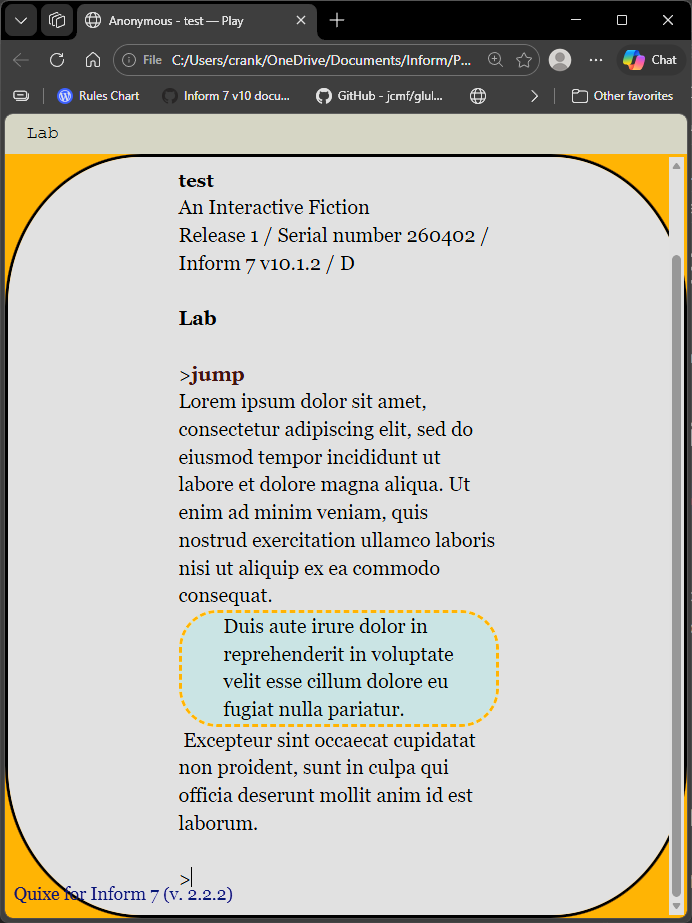
We could go further. Experimenting with margins and the like will further customize the position of our new box onscreen, but those tactics will receive a post all their own. Likewise, a background can be styled to match a nearly limitless possibility space of shapes.