Chapter 23 Figures, Sounds and Files
I’ve added sound and music to Quixe before, but only by manually editing the javascript files, never by using Inform’s default stuff. So I’m going to experiment along with this stuff.
Section 23.1 is Beyond text. It just says that if we use Glulx we can add files to things.
Section 23. 2 is How IF views pictures. This is just talking about cultural expectations around IF games and graphics.
In the cultural history of IF, graphics in text adventures have sometimes been looked at with suspicion. Mostly this is because attempts in the 1980s were not very successful, because computer graphics were so poor then (by modern standards). It may be that some people also felt that the takeover of computer games by graphical interfaces was the death knell of IF. But pictures are now rendered in superb quality by computers, and the death of IF turned out to be an exaggeration, so it is time to move on
I’ll admit, I’m not at all a fan of graphical adventure games more than others. I think adventure games can be fun (I really loved the Indiana Jones Atlantis game as a kid) but I have no desire to play Monkey Island or stuff like this. I like the text part of text games, not the world model and puzzles.
The section goes on to suggest hiring artists if you suck at art and that some devices can’t display images or have varying resolutions or color ranges.
Section 23.3 (No examples, this is all talk so far) says that IF story files are complex documents, not like pdfs or photographs. It says that a story file is itself a program for a virtual machine, which runs in the interpreter. (I always thought of the interpreter as the VM, but that’s because I don’t know the nitty gritty).
The last note is that some formats can incorporate images, while others can’t.
Section 23.4 is Gathering the figures.
First, we must use Glulx.
Inform calls pictures ‘figures’.
You have to put them in the Materials folder for your project in the Figures folder (creating one if there isn’t one yet).
For educational purposes, I will use the following public domain image for when the player attacks:

Section 23.5 is Declaring and previewing the figures.
With the images in the right folder, we name them like so:
Figure of Woodlands is the file "Woodlands.png".
Figure 2 is the file "Red Admiral Butterfly.png".
So I’m going to make
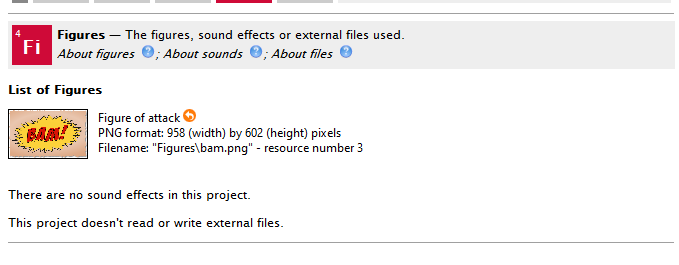
Figure of attack is the file "bam.png".
It should show up in the ‘Figures’ tab in the index (another tab I didn’t know existed until today! I should look at all of them some time):
Section 23.6 is Displaying the figures.
We can display images. It treats it just like text in that you can scroll away. To divide up the screen and use permanent images, you need fancy Glulx stuff.
To just print the image, we need to say:
display the Figure of Woodlands;
Or, in other words for my example:
display the figure of attack;
Let’s try it out:
The sandbox is a room. The mannequin is in the sandbox.

Figure of attack is the file "bam.png".

Instead of attacking something:
	display the figure of attack;

Man, that’s way too big! I’d need to edit that file size. Let’s resize it (not using inform) and recompile and try again:
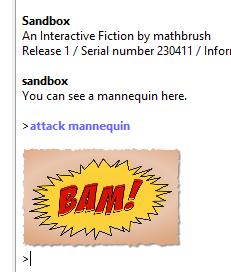
Okay, that’s better.
Section 23.7 is Recorded sounds.
It warns us:
Sound support is very newly added to the system and work is still in progress. In particular, sounds are not played by Inform for OS X (although it does produce valid blorbed Glulx story files), though they should be audible from within the Inform application for Windows.
We have to use Glulx and not all interpreters support it.
Speaking of which…let’s try our ‘bam’ program in other interpreters first!
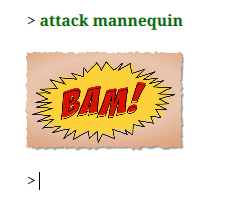
Works in gargoyle:
If I ‘release along with an interpreter’ and click ‘play.html’ and attack, it doesn’t show up:
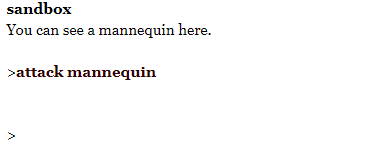
Hmm, that must be why I ended up hacking my own stuff for the Inform version of Swigian. I know Brain Guzzlers from Beyond put images into Glulx that worked; how did Steph Cherrywell do that?
Anyway back to music, we hae to use AIFF (uncompressed, huge) or Ogg Vorbis. That was to avoid copyright issues for MP3, but I think MP3 is legal to use now after a copyright dispute (but I wouldn’t rely on that info, I just remember really worrying about it 5 years ago).
It then says not to pirate copyrighted music and that music won’t even play on Macs when using Inform 7’s built-in interpreter.
Section 23.8 is Declaring and playing back sounds.
We make a ‘Sounds’ folder in materials and download the sound. I’m using a dial up ogg vorbis sound from Wikimedia, so I also declare this in my code:
Sound of internet is the file "Dial_up_connection.ogg".
This is my figures Index:
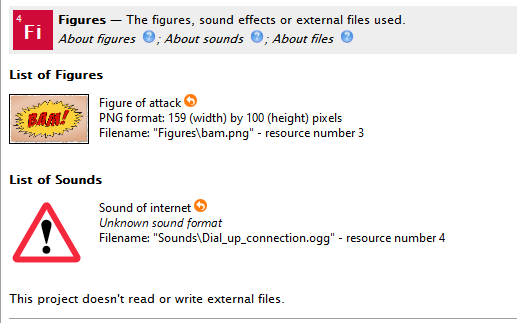
That’s not promising!
Then we play it:
play the sound of rustling leaves;
I’ll try:
Instead of thinking:
   play the sound of internet;
It works! Both in my Inform 7 interpreter and in Gargoyle.
What about Quixe?
Nope, just says Sound effect number 4 here.
But I have a way to hack music into Quixe. You can check it out by loading my game Absence of Law here and typing ‘sou’:
Section 23.9 is Providing Accessibility text. This is just alt text, and it’s like so:
Figure 2 is the file "butterfly.jpg" ("A red admiral butterfly.").
Release along with cover art ("A cathedral at sunset.").
Fugue is the file "Bach.ogg" ("A church organ playing a Bach fugue.").
Alas, despite adding alt text to my sound, Quixe still just says ’
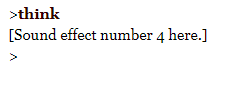
when it plays, even though I specified:
Sound of internet is the file "Dial_up_connection.ogg" ("An old moden dialing up").
Of course Vorple does all these things very well! (but my version does run in an offline local version of the html interpreter).
Section 23.10 is Some technicalities about figures and sounds
Kinds are important in Inform, and names for figures have the kind ‘figure name’. You can use this for variables:
The turn card image is a figure name that varies.

An Old Master is a kind of thing. An Old Master has a figure name called appearance. Figure 1 is the file "Giaconda.jpg". The Mona Lisa is an Old Master. The appearance of the Mona Lisa is Figure 1.

To place (F - a figure name) in the gallery: ...
Sound names have the value ‘sound name’.
In the blorb, things have internally given resource IDs. You can find them with the phrase ‘Glulx resource ID of (figure name)…number’.
And the following mysterious text:
(iv) Glulx hackers may also like to know that whenever Inform 7 builds a project for Glulx, the Inform 6 code it generates always contains a full copy of John Cater’s definitive header file “infglk.h”.
Section 23.11 is Files. It says that Inform files are run in a sandbox, which means it can’t infect the computer through malware. A Z-code game can’t affect any other files at all. But Glulx allows reading and writing to data files, basically like browser cookies.
Section 23.12 is Declaring files.
You declare a file like this:
The File of Glaciers is called "ice".
You can do this even before the file exists.
Filenames should follow these rules:
Quoted filenames should contain only letters and digits, should be 23 characters or fewer, and should begin with a letter. (In particular they can contain no slashes or dots - no subfolders or extensions can be indicated.) The actual filename this translates to will vary from platform to platform, but “ice.glkdata” is typical, stored in some sensible folder.
Each file has an ‘owner’, but you can declare that the file is owned by a different project:
The file of Boundaries (owned by another project) is called "milnor".
The file of Spectral Sequences (owned by project "4122DDA8-A153-46BC-8F57-42220F9D8795") is called "adams".
(We use the IFID to specify the owner, with the IFID given by typing VERSION during play or looking in Contents index, under the Card.)
I’m declaring the following:
The file of Amusing Deaths is called "lolfile".
And I get this in my figures index:
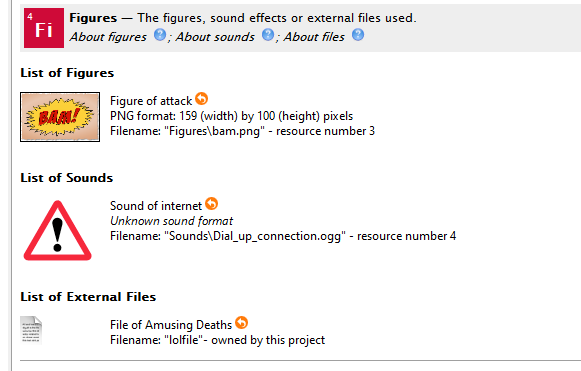
My ‘File of Amusing Deaths’ has a kind of value called ‘external file’. We can use text files or binary files. Binary files are declared as so:
The binary File of Glaciation Data is called "icedata".
I’m going to copy this into my project:
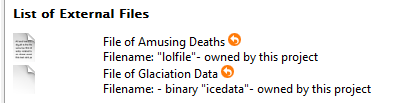
Section 23.13 is Writing and reading tables to external files.
Tables are focused on as everything else (mostly) can be contained in files. Here’s how we do it:
write File of Glaciation Data from the Table of Antarctic Reserves
All blank rows are ignored.
To load it back:
read File of Glaciation Data into the Table of Antarctic Reserves
you can check it with this:
if the File of Glaciation Data exists, ...
So I’ll try this out.
I’ll add commands for reading and writing to a file.
I’ll have a table of amusing deaths and a table of emptiness. One command will write the table of amusing deaths to an external file, and one command will load it into the table of emptiness and then print everything in that table.
If I try to load before writing, I get this reasonable error:
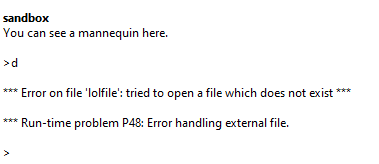
(I could have avoided this by checking if the file was empty)
Trying to write, though, gives me this error:
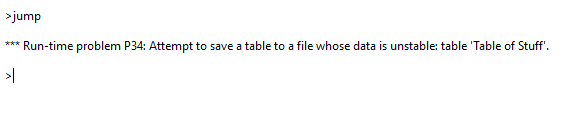
This was my code:
The File of Amusing Deaths is called "lolfile".

The binary File of Glaciation Data is called "icedata".

Table of Stuff
object	name
mannequin	"The mannequin punches you back!"


Table of Emptiness
object	name
--	--

Instead of jumping:
	write File of Amusing Deaths from the Table of Stuff;

Instead of going nowhere:
	read File of Amusing Deaths into the Table of Emptiness;
	repeat through the Table of Emptiness:
		say name entry;
So I think maybe having an object is bad? I’ll try to make it just text.
That works with no error for writing. Now to try loading:
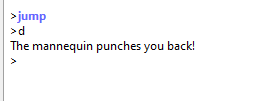
(sorry the examples are nonsensical, I just wrote whatever popped in my brain).
Hmm, pretty neat! I wonder if this is the technique @Afterward uses for saves for his Fly Fishing game.
Now we have 3 examples!
Example 439 is Alien Invasion Part 23
Carry out selecting difficulty:
    choose row 1 in the Table of Preference Settings;
    now challenge level entry is difficulty understood;
    say "Puzzles will be [challenge level entry] from now on."

The File of Preferences is called "prefs".

When play begins:
    if File of Preferences exists:
        read File of Preferences into the Table of Preference Settings;
        choose row 1 in the Table of Preference Settings;
        say "(The current puzzle difficulty is set to [challenge level entry].)"

Check quitting the game:
    write File of Preferences from the Table of Preference Settings.

Table of Preference Settings
challenge level
easy
Example 440 is Labyrinth of Ghosts
Table of Ghostly Presences
| haunted position | score at death | turns at death | manner of death | sequence |
|---|---|---|---|---|
| a grid location | a number | a number | a demise | a number |
| with 19 blank rows. |
To have the player (sticky end - a demise):
    let the new sequence number be 0;
    repeat through the Table of Ghostly Presences:
        let S be the sequence entry;
        if S is greater than the new sequence number, let the new sequence number be S;
    increment the new sequence number;
    if the number of blank rows in the Table of Ghostly Presences is 0:
        choose row 1 in the Table of Ghostly Presences;
        blank out the whole row;
    choose a blank row in the Table of Ghostly Presences;
    now the sequence entry is the new sequence number;
    now the manner of death entry is the sticky end;
    now the turns at death entry is the turn count;
    now the score at death entry is the score;
    now the haunted position entry is the coordinates of the location;
    write the File of Ghosts from the Table of Ghostly Presences;
    now the latest demise is the sticky end;
    end the story saying "You have been [latest demise]".

The File of Ghosts is called "ghosts".

When play begins:
    if the File of Ghosts exists, read File of Ghosts into the Table of Ghostly Presences;
    sort the Table of Ghostly Presences in sequence order.

After looking:
    repeat through the Table of Ghostly Presences in reverse sequence order:
        if the haunted position entry is the coordinates of the location, say "You sense the ghostly presence of an adventurer, [manner of death entry] with a score of [score at death entry] in [turns at death entry] turns."
So all your previous deaths stick around permanently. Reminds me of Undertale, remembering what you do unless you delete the game (or DDLC, which I haven’t played).
Example 441 is Rubies, with a scoreboard:
When play ends:
    choose row 10 in the Table of Leaders; [we've sorted the table, so the lowest score will be the one at the bottom]
    if the score is greater than scored amount entry:
        now name entry is the player's forename;
        now the scored amount entry is the score;
    show leaderboard;
    write the File of Leaderboard from the Table of Leaders.

To show leaderboard:
    sort the Table of Leaders in reverse scored amount order;
    say "Current leading scores: [paragraph break]";
    say fixed letter spacing;
    repeat through Table of Leaders:
        if scored amount entry is greater than 0:
            say " [name entry]";
            let N be 25 minus the number of characters in name entry; [here we want to space out the scores so they make a neat column]
            if N is less than 1, now N is 1;
            say N spaces;
            say "[scored amount entry][line break]";
    say variable letter spacing.

To say (N - a number) spaces:
    repeat with index running from 1 to N:
        say " ".
There is a table of leaders too that isn’t copying to here nicely.
Section 23.14 is Writing, reading, and appending text to files.
This just erases a declared file and puts text in it:
write "Jackdaws love my big sphinx of quartz." to the file of Abecedary Wisdom;
If we don’t want to erase, we can just add more to a file (or create it if it doesn’t exist):
append "Jinxed wizards pluck ivy from the big quilt." to the file of Abecedary Wisdom;
This text can contain substitutions and be long.
To read it back, just put the following:
"[text of the File of Abecedary Wisdom]"
You can even copy one file to another:
write "[text of the file of Abecedary Wisdom]" to the file of Secondary Wisdom;
Example 442 is The Fourth Body:
A jotter is a kind of thing. A jotter has an external file called the text file. A jotter can be fresh or used. A jotter is usually fresh. A jotter has a text called the heading.

The currently erased jotter is an object that varies.
To erase (pad - a jotter):
    now the currently erased jotter is the pad;
    write "[heading of the currently erased jotter][paragraph break]" to the text file of the pad;
    now the pad is fresh.

To write in (pad - a jotter):
    append "[the time of day]: [topic understood][line break]" to the text file of the pad;
    now the pad is used.

To read (pad - a jotter):
    say "You read: [paragraph break][text of the text file of the pad]".
Example 443 is similar but with slight variations in how writing down things is handled. Since I didn’t copy that part of the code for the first example, I won’t here either.
Section 23.15 is Exchanging Files with other programs.
To avoid writing into an in-use file, we have a condition called ‘ready’.
if ready to read the file of Invariants, ...
How do we know something is ready? If we used the following phrase:
mark the file of Invariants as ready to read;
(by the way, I tried out the file writing in Quixe and it actually worked! I couldn’t find where it was storing it; cookies? Local storage?)
We can also mark things as not ready to read:
mark the file of Invariants as not ready to read;
These commands let us use non-Inform programs to communicate with Inform! Pretty wild. To do that we need to know some details which are in this section but which I will not copy, basically adding a cool header to the file encoded in ASCII Latin-1.
Example 444 is The Flathead News Network, which uses a background Perl script to fetch real time RSS headlines that update whenever the player looks at the news! Pretty wild stuff, I recommend checking it out.